

An employee directory is a maintained, searchable source of information about an organization’s people, roles, skills, teams, locations, and working relationships. A modern employee directory helps employees find expertise, understand responsibility, and work together. It also gives HR and managers a current view of how the organization is structured and how it changes.
For decades, an employee directory was the company phone book: names, titles, and numbers in a list. Today, a modern employee directory is a key source of organizational intelligence. At a time when retraining and upskilling have become a major business and social responsibility, supported by many governments,1, 2 it shows who knows what and where skills and expertise sit across the whole organization, down to each department and office. It also shows where skills are thin or missing, who is responsible for what, and how all of it changes from month to month. And instead of searching for names, people can ask for the skills and expertise they need, within what their role allows.
This guide starts with what an employee directory is, how the main types compare, and what Microsoft 365 already provides. It then explains what a directory should hold, who maintains it, and how an AI agent answers questions from it. Next, it shows how to find skills across departments and offices, make reporting lines clear, and move from finding someone to working together. Finally, it covers monthly HR reporting, subscriptions and licenses, AI agents in the organization, and how to choose, launch, and improve a directory. We wrote it for HR, IT, and business leaders, so that people find the right colleague quickly, in the tools they already use.
What is an employee directory?
At its simplest, an employee directory answers two questions: who works here, and how do I reach them? Most organizations start with names, job titles, departments, phone numbers, and email addresses. But the questions people ask at work go further. For example, they want to know who has done similar work, who owns a decision, and who can help today. Managers and HR add questions of their own, such as where a skill sits in the organization or how a department changed last month.
That is why a modern employee directory connects several kinds of information. It combines contact details with roles and reporting lines, skills and experience, location and time zone, and availability. Colleagues can then move from a question to the right person, and on to a conversation, without asking around.
You will also hear other names for it. A staff directory, company directory, and people directory usually mean the same thing. An employee database, on the other hand, is often an HR record store rather than a tool for colleagues.
Employee directory, org chart, and HR system compared
Three tools are often confused, although each serves a different purpose. A healthy setup uses all three for what they do best.
| Tool | Main purpose | Typical users | Typical content |
|---|---|---|---|
| Employee directory | Find and contact the right person | Everyone in the organization | Contact details, role, department, manager, location, skills, languages, availability |
| Org chart | Understand reporting lines and team structure | Employees, managers, leaders | Managers, direct and functional reports, teams |
| HR system (HRIS) | Manage employment records | HR and, in part, employees through self-service | Contracts, compensation, absence, employment history |
In short, the HR system stays the system of record for employment, while the directory makes people findable. For more detail, see how a directory and an org chart differ and why the HR system stays the system of record.
Types of employee directories
Organizations usually move through several types as they grow: a spreadsheet or template, an intranet page or Microsoft SharePoint list, an HR system module, the built-in Microsoft 365 experiences, and a dedicated employee directory app. Each has a place, but each also has limits.
| Type | Strengths | Limits | Fits when |
|---|---|---|---|
| Spreadsheet or template | Fast and free | Stale quickly, no control over who sees which field | A small team that changes rarely |
| Intranet or SharePoint list | Familiar place, easy to start | Manual upkeep, weak search and org charts | Basic contact lookup |
| HR system module | Authoritative employment data | Covers one system’s people, outside daily tools | HR tasks and employee self-service |
| Microsoft 365 built-ins | Already licensed and integrated | Only as current as Microsoft Entra ID; limited search by skill or experience | Contact details and reporting lines |
| Dedicated directory app | Consolidated data, search by skill and experience, reporting, governance | A purchase and a rollout | Several HR systems, global teams, or skills-based work |
Read where Microsoft SharePoint lists fall short as a staff directory, and see our guide to directory software for the categories in more depth. Whatever the type, a directory depends on its connections: HR systems for employment data, Microsoft Entra ID for identity, learning systems for certifications, and calendars for availability.
What Microsoft 365 already provides
Before evaluating any product, check what your current licenses, configuration, and data already enable.
Microsoft Entra ID
Every user’s identity lives in Microsoft Entra ID, with attributes such as job title, department, manager, office location, and phone numbers.3 Many Microsoft 365 experiences read these attributes, so their quality shapes what people see everywhere else.
The Global Address List in Microsoft Outlook
The Global Address List is the address book of all mail recipients in an Exchange Online organization.4 It works well for contact details, but it was not built to search by skill or experience.
Profile cards, Org Explorer, and People Skills
Profile cards show contact and organizational information across Microsoft 365, and Org Explorer shows a person’s manager chain, peers, and reports.5 Depending on licenses and settings, People Skills can also show skills on the profile card.6 Microsoft People in Outlook, by contrast, is mainly where people keep their contacts.
Where an employee directory app adds value
An additional app needs a specific purpose, such as consolidating several HR systems, governing which fields each audience sees, making skills and experience searchable, or answering questions through an AI agent. Also separate a missing capability from missing data: a chart cannot display a manager that no source has recorded.
What a modern employee directory should help an organization do
A feature list shows that a search box, a chart, and filters exist. But it does not show whether a new employee can find the right person, or whether HR can explain last month’s changes. So judge an employee directory by the work it supports, starting with three basics that every directory needs:
- Find and reach any colleague by name, job title, department, or office.
- Show who reports to whom, and who heads each unit.
- Keep every record current, with clear owners and visibility rules.
A modern employee directory goes further. It also helps an organization:
- Find a relevant colleague, even when the person asking knows a topic but not a name.
- Answer questions in plain language, within what each person’s role allows.
- See where expertise sits across departments, offices, and regions.
- Understand responsibility in a matrix, through job roles, line managers, and functional managers.
- Work together across time zones, from the first contact to a scheduled meeting.
- Explain how the organization changed in HR’s monthly management report.
- Show who should have which subscriptions and devices, and what they cost.
- Know which AI agents can help and who is accountable for each one.
Find a relevant colleague
Many searches begin without a name. Instead, the person knows a topic, a customer, a location, or a problem. Good search then narrows the population and explains why each result is relevant. A title helps, but skills, certifications, languages, and confirmed experience add the evidence people need to choose.
The directory should also make referrals easy. The first person found may not be the right one, but they may know who is. Success is a useful connection, not a perfect first result.

What an employee directory should include, and who maintains it
The right fields depend on the decisions people make with them. Still, most organizations need the same building blocks. The first rows below are the basics every directory has. The other rows, however, separate a directory people use from a list they ignore.
| Information | Examples | Usual source | Who keeps it current |
|---|---|---|---|
| Identity and contact | Name, photo, email, phone | Microsoft Entra ID | IT, and the employee where allowed |
| Role and organization | Job title, department, line and functional managers, cost center | HR systems | HR |
| Job roles | Job role, additional roles, required and recommended skills | HR systems and the directory | HR, with managers |
| Departments and offices | Head of unit, parent unit, office address, office holidays | HR systems | HR |
| Location and time | Office, work location, time zone, working hours | HR systems and the Microsoft 365 calendar | HR and the employee |
| Skills and certifications | Skills, proficiency, certificates with expiry dates | The employee, learning systems | The employee, validated by a manager or HR |
| Languages | Spoken and written languages | The employee | The employee |
| Work and project experience | Roles, projects, customers, industries | CVs and the employee | The employee |
| Availability | Presence, calendar, out-of-office | Microsoft Teams and Microsoft Outlook | Updated automatically |
| Subscriptions and devices | What each job role should have, and what people hold | The directory, Microsoft 365, and the service desk | IT, with HR for job roles |
Two points are easy to miss. First, skills, certifications, languages, and work and project experience are not attributes of Microsoft Entra ID, so an identity directory alone cannot answer “who has done this before?” Second, a skill without evidence is only a claim. So a strong employee directory shows the basis for each skill, such as a certificate, a project, or a validation by an accountable reviewer.

The AI agent: ask the employee directory in plain language
Most questions people bring to a directory arrive as a sentence, not as a set of filters. An AI agent in the employee directory answers them in Microsoft Teams, Microsoft Outlook, or Microsoft Copilot, from the directory’s own consolidated data rather than the open web. The directory then becomes a source of answers for the whole organization: employees, managers, HR, IT, and leaders.
What people ask, and what each person receives
An employee asks, “Who has SAP S/4HANA project experience in Singapore?” and gets the matching colleagues with the records behind each match. Managers ask which contracts in their team end soon, and leaders ask how a department spreads across functions and locations. The same question, however, must not return the same answer to everyone. “Contracts expiring in my country” gives an HR administrator their country, a line manager their own team, and an employee whose role does not allow it a clear refusal that explains why.

How to judge a directory’s AI agent
- Answers depend on who asks. Role and organizational scope decide what each person receives.
- Every answer shows its evidence, so people can see why a colleague was named.
- Sensitive information stays with its audience, in answers as in profiles and exports.
- Authorization decisions are recorded for review, without storing the conversation.
- Prompts and answers are not used to train foundation models.
- It works where people work, and it connects with other agents and workflows through open standards such as MCP and A2A.
In TeamConnect AI, one agent covers the whole directory, with hundreds of governed questions. It ships with 50+ Agent Roles that decide what it may answer for each person. You can define your own, and Microsoft 365 security groups can govern it too. Read how the AI agent is governed.
Finding skills across people, departments, and offices
Searching for one person answers “who?” Organizations also need to know “where?” Which departments hold a particular skill or certification? Which offices have the expertise and the language coverage a customer needs? Is critical knowledge concentrated in one location, or spread across several? And who can people approach in each of those units?
See skills by department, office, and region
A skills matrix answers these questions. It lists skills against departments, business units, regions, or offices, and shows how many people hold each one. From any count, a manager can open the named people behind it, within what their role allows. Managers can then locate internal expertise, connect units, and notice where knowledge is concentrated.
Departments and offices also deserve records of their own, with a head, a place in the hierarchy, and an operating context such as the address and office holidays. That way, people can approach a unit, not only an individual. For example, a manager forming an agile team across locations can see which offices hold data analysis, change management, and German. And HR can spot a certification that only one person in a region holds.
Read the counts with care
A count shows recorded skills, not every skill people have. An office with few recorded skills may simply have incomplete profiles, so a low count can mean missing data rather than missing expertise. So a good directory shows how complete and how recent the profiles behind a count are. It also asks people to review their skills at regular intervals, and it requests validation where evidence matters.
In TeamConnect AI, the skills matrix shows skills coverage across the organization, by department, business unit, region, and office, with validation requests that keep profiles current. Our guide to an employee skills database for everyone, not just HR explains how to collect and validate skills that colleagues can trust. Our article on skills evidence and fair internal mobility also shows how to use them fairly.
Understanding job roles, reporting lines, and matrix organizations
After finding someone, people need context. What is their role? Who is their manager? Which team do they belong to? A profile gives the detail, and an org chart shows the relationships. Both should use the same people and the same managers, so moving between them never produces a contradiction.
Job title, job role, and demonstrated skills
A job title describes a position. A job role describes the responsibilities that come with it, often with required and recommended skills. Demonstrated skills, in turn, are what a person has shown, with evidence. The three are related, but they are not the same.
People can also hold more than one role. For example, an employee’s title is Operations Manager, and their additional role is Business Continuity Coordinator, with requirements of its own. Assigning that role does not mean the person already has every skill it requires. Comparing a role’s requirements with the skills people have recorded, however, shows HR where development may be needed.
Line managers, functional managers, and dotted lines
In a matrix organization, one manager is rarely the whole story. The line manager is the formal reporting line. A functional manager provides oversight across department boundaries, such as a regional finance lead for country controllers. Project and collaboration relationships form a third kind. An org chart should show all three differently, and a dotted line helps only when people know what it means. And nobody should infer approval authority from a box’s position alone.
Departments and offices need the same clarity. People should see who heads each unit, which unit it belongs to, and who works in it. Clear escalation paths, quicker orientation for new employees, and easier coordination across departments all follow.
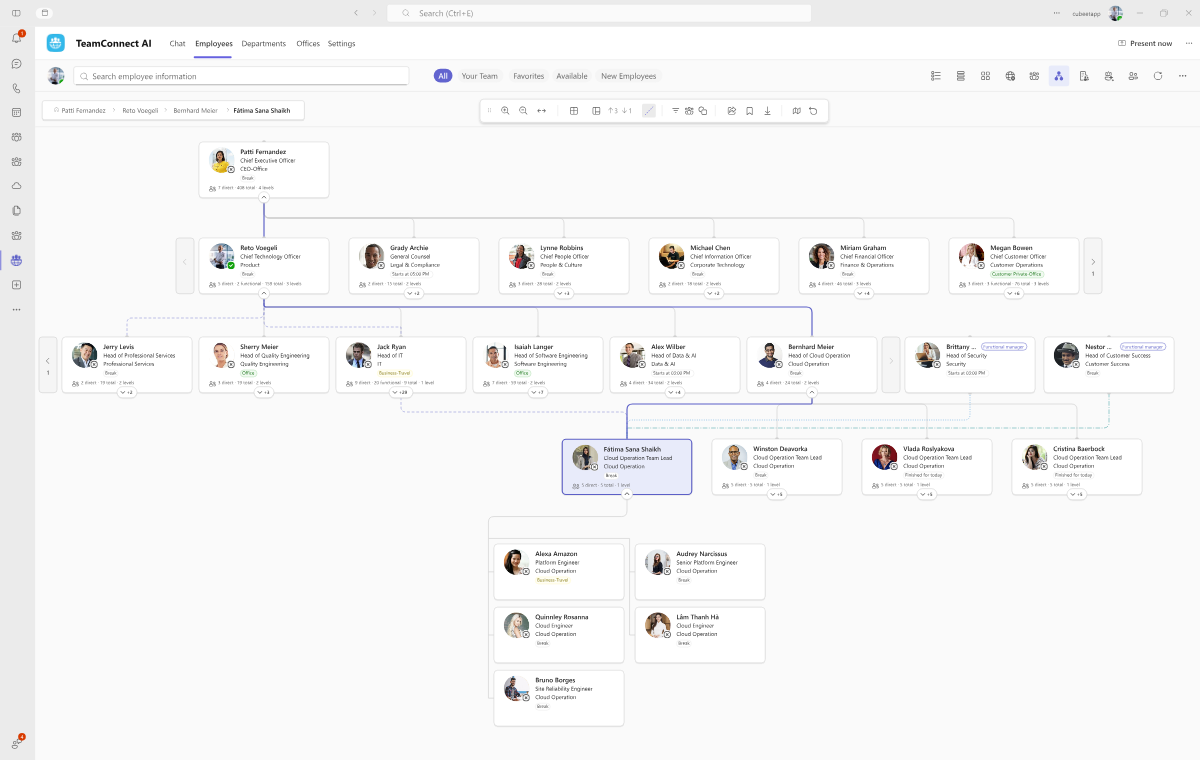
In TeamConnect AI, the org chart shows direct and functional reporting relationships across the employee, department, and office hierarchies, and every box opens the person’s profile. For a deeper look, read about org charts for matrix organizations and how to keep reporting lines current.
From finding expertise to working together
Finding the right person is only the first step. The full journey runs from expertise to responsibility, then to working conditions, a group, a suitable time, and the conversation itself. A directory that stops at the profile leaves the rest to long email threads.
Four signals that answer different questions
Working conditions are easy to confuse, so keep the concepts precise:
- Presence in Microsoft Teams shows whether someone is available or busy right now.7
- Calendar availability shows when they are free, within their working hours and local time.
- Work location is the city someone works from today, which is not always their office.
- Absences and office holidays show when they are away.
None of these signals shows capacity for new work, willingness to take it on, or performance. They are context, not surveillance.
Bring colleagues together and agree on a time
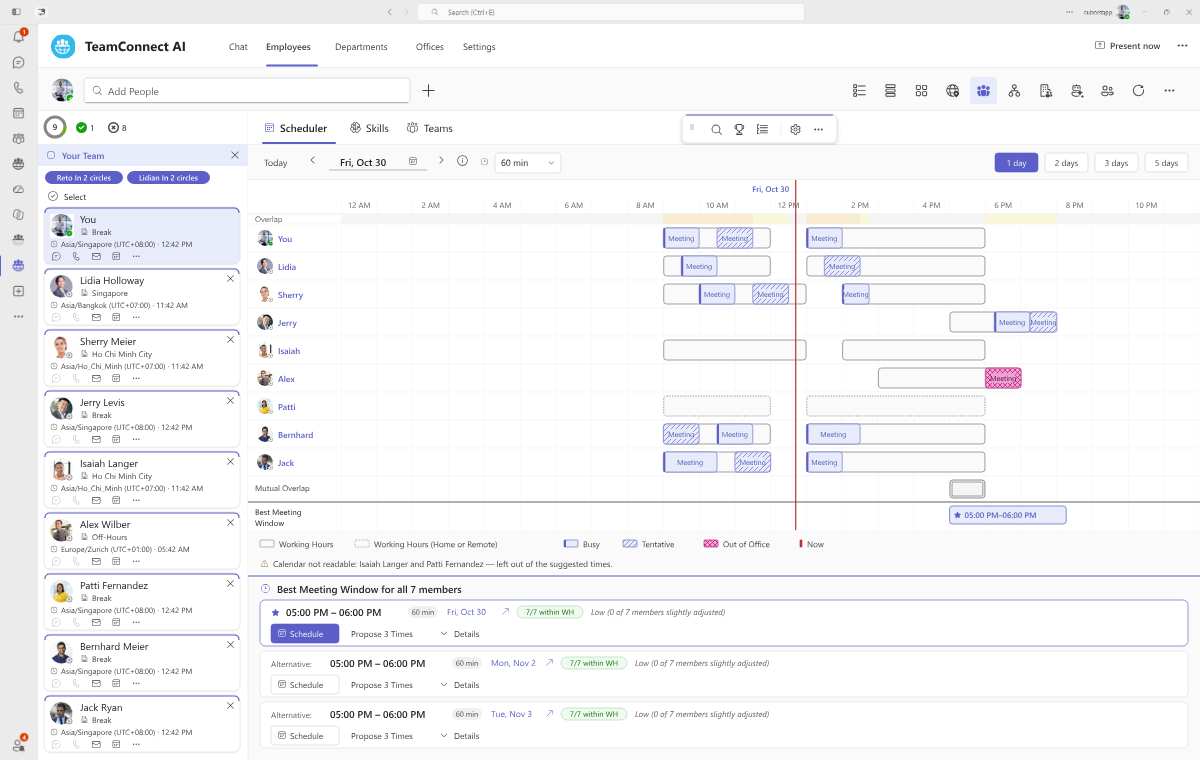
Work across sites means work across calendars. For global teams, a directory should show each colleague’s local time and convert everything else into the viewer’s own time zone. It should also respect regional formats, such as 12- or 24-hour time and the first day of the week.
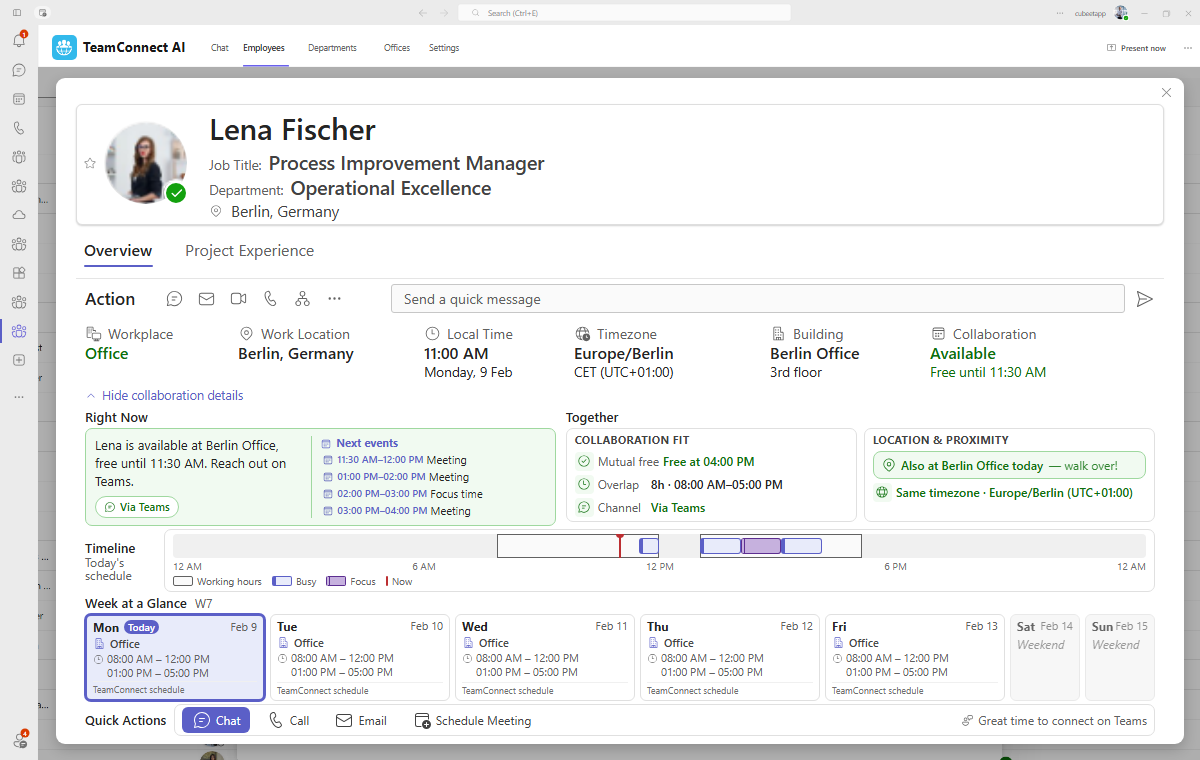
The next step is a group. In TeamConnect AI, a Circle in Collaboration brings together favorites, your team, a department, a Microsoft Teams channel, a chat group, or individual colleagues. It then shows their skills, where working hours overlap, who is away, and the next time everyone is free. People can compare meeting windows and send the invitation without leaving Microsoft Teams.
Contact should also keep its context. When someone is found through a skill or a responsibility, a short introduction tells them why they are being contacted. That introduction replaces the vague message asking whether they are the right person.
None of this depends on size: a 2,000-person company across six countries has the same time zones and dotted lines as a 200,000-person one. Frontline workers add shared devices and changing shifts, which our article on directories for frontline teams covers.
Monthly HR reporting from the employee directory
Every month, HR answers the same management questions. How have headcount, the external workforce, and FTE changed? Which departments and offices grew or shrank? How many joiners, movers, and leavers did each unit record? Where do reporting spans, management layers, or units without a head need a review? And how have estimated workforce costs and digital-worker costs moved?
An employee directory already holds the data behind these answers: people, units, managers, locations, and the dates when they changed. Large organizations often run several HR systems, and consolidating their exports is manual work. A directory that consolidates those sources can answer the same questions with consistent dates, definitions, and organizational assignments. Readers can then move from a total to the departments and named people behind it, within the scope their role allows.
A monthly reporting routine
- Check the data. Review profile completeness and approve staged imports before the reporting date.
- Choose the dates. Pick the observation date and the period to compare it with.
- Review what changed. Look at joiners, movers, and leavers, unit growth, reporting spans, and estimated costs.
- Add HR’s interpretation. Explain the reasons behind the changes that matter.
- Deliver the report. Export it for the management pack, for example to Microsoft PowerPoint or Microsoft Excel.
- Assign follow-up actions. Name an owner for each open point, such as a department without a head.

What the numbers can and cannot show
History depends on the observations recorded. A directory can compare months only from the point it started recording them, so check the coverage dates before you compare. Total workforce also needs a clear definition: employee FTE plus external-workforce FTE, with digital workers counted separately in number and cost. Digital-worker seats and their cost do not show productivity, an FTE equivalent, or return on investment. Finally, costs are estimates, not salaries. Gender, age, and other protected characteristics do not belong in an employee directory. Reports that require them, such as gender pay gap reporting,8 belong in the HR system.
In TeamConnect AI, Organization Insights reviews employees, external workers, and digital workers in the same organizational view, with headcount, FTE, structure, estimated workforce costs, and recorded changes. Every figure carries its date and source, with up to 36 months of observed history where available. Reports export to Microsoft PowerPoint, PDF, Microsoft Excel, or CSV, and they report what the records show, with no forecasts. See how leaders use Organization Insights, and read our article on headcount, FTE, and the external workforce.

Subscriptions and licenses in the employee directory
Most subscriptions and devices are assigned to a person, and what a person should have follows their job role, department, and status. The employee directory already holds all three. HR systems know the job role but not the licenses, while Microsoft Entra ID knows Microsoft 365 assignments but not what each job role should have, or the subscriptions outside Microsoft 365. That makes the directory the natural place to define who should have what, and to check it.
What each job role should have
Start with a catalog of the platforms, subscriptions, and devices the organization pays for, including those outside Microsoft 365. Then record what people in each job role should have, plus the set every employee receives. With that in place, the directory can compare what people should have with what they actually hold, by person and by department.
What IT can show the CFO
The same data gives IT the numbers it owes Finance: cost and unassigned capacity by subscription and department, and the disabled accounts that still hold licenses. Blocking sign-in does not remove a Microsoft 365 license; the license has to be unassigned, and the bill falls only when the subscription quantity is reduced.9 So a saving counts only when a purchasing, renewal, or billing change confirms it.

Joiners, movers, and leavers
Each joiner, mover, and leaver changes what a person should have. A promotion may change nothing, a new role may add requirements, and a leaver’s licenses must be removed and the removal confirmed. The directory holds what each role should have, while the lifecycle process records what was actually assigned and removed.
In TeamConnect AI, the catalogs and what each job role should have live in the directory, and Subscription Analytics shows cost and unassigned capacity before each renewal. With TeamJML AI, the joiner, mover, and leaver process records what was assigned and removed. See license management for Microsoft 365.
People and AI agents in one employee directory
Beyond the directory’s own agent, many other AI agents are joining the workforce, with identities of their own. For an employee, the question is practical: who, or what, can help me complete this task, and who is accountable for it? So people need to find agents the way they find colleagues, by what they can do and by who answers for them.
What an agent profile should show
A useful agent profile explains the agent’s purpose, the capabilities its publisher advertises, where it comes from, and where it can be opened. It also names the people responsible for it, who are often different people. In Microsoft Entra Agent ID, a sponsor is accountable for an agent’s purpose and lifecycle, owners handle its technical administration, and a manager places it in the organization’s hierarchy.10 An advertised capability is not a human skill, so it should never appear as a proficiency score.

Where agents sit in the organization
In the org chart, agents belong beside the people who manage them, while their associations stay separate from human reporting lines. That keeps headcount and spans of control meaningful. In workforce reporting, agents appear as digital workers, so leaders can see where their seats and costs sit, usually with IT as the cost owner.
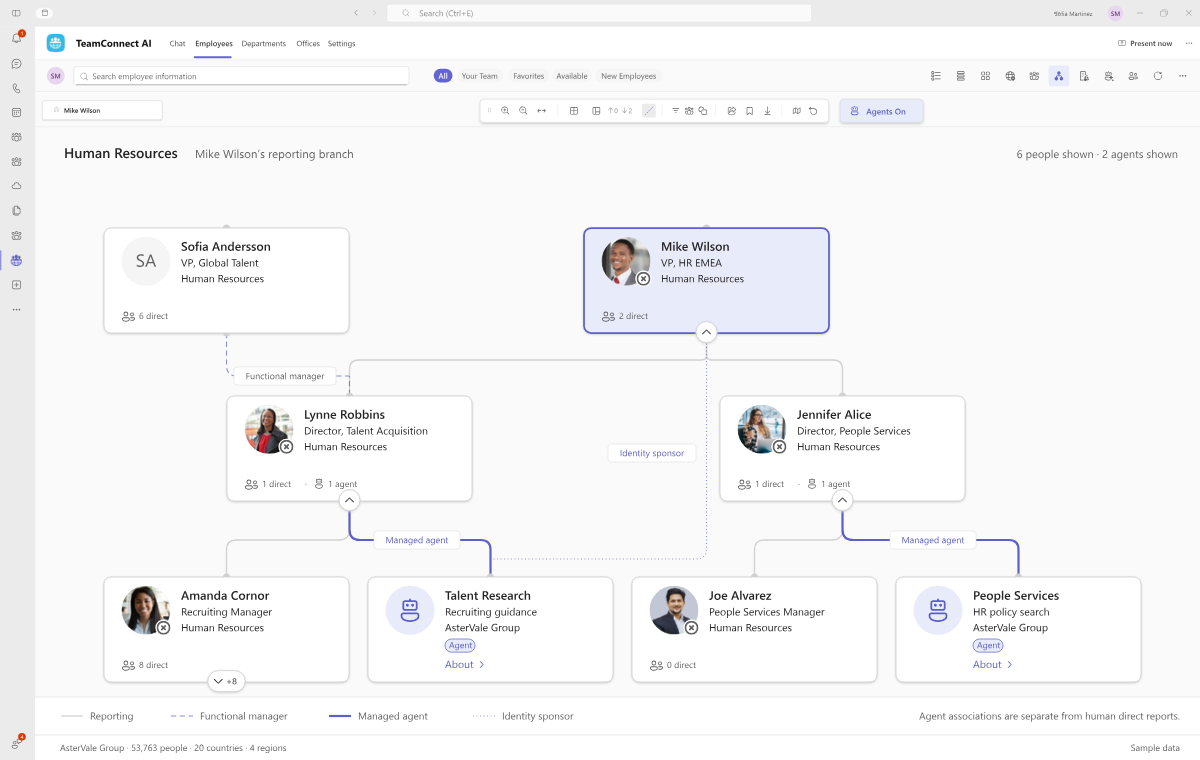
In TeamConnect AI, agents appear as their own view in the directory, mirrored from Microsoft Entra Agent ID. Each one shows its advertised capabilities, the agent-user manager, identity sponsor, and technical owner as distinct relationships, and a usefulness rating from your own colleagues. Organization Insights then shows digital workers in number and cost beside employees and the external workforce. Read more about people, AI agents, and accountability, and see how agents work in TeamConnect AI.
Keeping directory information current, governed, and useful
Directories rarely fail on launch day. They fail slowly, as records drift away from reality and people stop trusting what they see. Keeping them current takes ongoing work from HR, IT, managers, and employees alike.
The ownership gap
Job title, department, manager, and office are HR data, but they often live in Microsoft Entra ID, a system IT owns. Where no group or access rule depends on them, nothing breaks for IT when they go stale, so no process, owner, or trigger keeps them up to date. That is a structural gap, not anyone’s negligence, and closing it starts with clear ownership for every field.
Three questions for every field
Good governance answers three separate questions for each field:
- Which source supplies the authoritative value? For example, an HR system for the job title, Microsoft Entra ID for the email address, and the employee for languages.
- Who can update or maintain it? Some fields belong to the employee, others to HR, a manager, or IT.
- Who may see or export it? Business contact details can be broadly visible, while restricted records stay with the people entitled to them.
Employees also need a clear way to report an outdated record, and self-maintained profiles need a review cadence, so skills and experience do not quietly age. Privacy follows purpose,11 so check profiles, search, exports, reports, and AI answers together. Our article on role-based visibility for people data explains the model.

In TeamConnect AI, data governance decides who maintains each field and who sees it, in the directory, in analytics, and in exports.
Check the data before you import it
Start by measuring what you have. The free Microsoft Entra ID Health Check scores the quality of your Microsoft Entra ID data across seven categories and delivers a downloadable PDF report. IT runs it, because it needs admin rights, and HR then owns and approves the people data that follows. Running it before the first import means only current data reaches the directory.

Connect the sources instead of copying them
Each HR system should remain the system of record for its own employees. Connectors and imports bring their data together, and HR can review staged changes before they are published. A sync with Microsoft Entra ID can then update Microsoft 365, so profile cards and the address book benefit too. Our article on a directory fed by several HR systems covers identity matching and field authority.
Let employees add what only they know
Some information exists in no system at all. Project experience from earlier employers, for example, rarely appears in a CV, and usually only the employee knows it. So self-service, with clear editing rules and validation where it matters, is the only way to capture it.
How to choose, launch, and improve an employee directory
Start with what to test, then follow a simple sequence in which each step reduces the risk of the next.
Capabilities to test
Test the basics first:
- Contact search: any colleague by name, job title, department, or office, with current contact details.
- Org charts with reporting lines and the head of each unit.
- Governance by field, in every view and export.
- Integrations with HR systems and Microsoft Entra ID, without custom development.
- Global and mobile readiness: languages, time zones, regional formats, and phones.
Then test what makes a directory modern:
- Search by expertise: skill, certification, language, and location combined, plus experience in plain language.
- An AI agent that answers in plain language, within each person’s role, with evidence.
- Profiles that show the evidence for each skill.
- Skills by department, office, and region, with the people behind each count.
- Matrix org charts with line and functional managers, units, and agents.
- Collaboration: contact from the profile, and a time that suits a whole group.
- Reporting with dated figures, history, and exports.
- Subscriptions mapped to job roles, with cost by department.
For a complete evaluation checklist, use our buyer’s guide for Microsoft 365. Our article on mobile access covers the phone experience.
Once you have chosen, the launch is mostly about your data, because a modern directory comes ready to use: search, org charts, reports, and the AI agent’s questions are built in.
1. Choose the scope: the whole organization, or one country or company
Approve the app in Microsoft 365, then choose what to sync. A directory pays off when people find colleagues beyond their own team, so start with the whole organization, or with one country or company, not a single department. Add the next whenever you are ready.
2. Check Microsoft Entra ID, then sync
Measure the quality of Microsoft Entra ID for that scope, and decide what to update before the first sync. Otherwise, a new directory displays old problems in a new place.
3. Load your HR data
Import the existing data from each HR system, by file or through a connector. Each HR system stays the system of record for its own employees. Decide which source is authoritative for each field, and review the changes before they are published. Start with the sources that are ready today, and add the others after mapping and testing. Field ownership matters most with several HR systems, or in a 50,000-person rollout. If you are replacing an older tool, our article on moving from a legacy directory covers the move.
4. Add skills from a maintained taxonomy
Start from a maintained skills taxonomy instead of building your own list, and bring in the skills you already hold, such as those people added in Microsoft 365 or certifications from learning systems. Employees then add what only they know, such as languages and work and project experience, and managers or HR validate the skills that matter most.
5. Run it as a service, and keep improving it
A directory needs named owners for source mappings, failed updates, visibility rules, and reported updates. Measure whether people find who they need, and add the fields or sources that are still missing. Our article on why directories lose trust after launch covers the operating model.
TeamConnect AI: the employee directory in Microsoft Teams, Microsoft Outlook, and Microsoft Copilot
TeamConnect AI by Cubeet is the AI employee directory for Microsoft Teams, Microsoft Outlook, and Microsoft Copilot. It consolidates people and organization data from Microsoft Entra ID and your HR systems, and it makes skills, certifications, languages, and work and project experience searchable for everyone, within what each person’s role allows.
People can combine filters in the directory or ask the AI agent, and the conversation can start right away in Microsoft Teams. It also includes the skills matrix, org charts for matrix organizations, Collaboration, Organization Insights, and license management for Microsoft 365 and other subscriptions. A skills taxonomy that Cubeet maintains covers 23,000 skills and 1,000 certifications, and the app is available in 45+ languages and 62 countries.

Your people and organization records are stored in SharePoint Online within your own Microsoft 365 tenant, and people sign in with their existing Microsoft 365 account. Going live takes a Microsoft billing account and two global admin consents per app. Explore TeamConnect AI, or bring a real question to a thirty-minute demo.
Employee directory FAQ
What is an employee directory?
It is a maintained, searchable source of information about an organization’s people, roles, skills, teams, locations, and working relationships. Colleagues use it to find expertise and reach the right person, while HR and managers use it to see how the organization is structured and how it changes.
What should an employee directory include?
At minimum, it includes name, photo, job title, department, manager, location, and contact details. Most organizations also add job roles, departments and offices with their heads, skills and certifications with evidence, languages, work and project experience, time zone, and availability.
Is an employee directory the same as an org chart?
No. An org chart shows reporting relationships, while an employee directory helps people find and contact colleagues. The best tools connect both, so a search result leads straight to the person’s place in the organization.
What is the difference between a line manager and a functional manager?
A line manager is a person’s formal reporting line, usually a solid line in an org chart. A functional manager provides oversight across department boundaries and usually appears as a dotted line. Many people in a matrix organization have both.
Does Microsoft 365 include an employee directory?
Microsoft 365 includes the Global Address List in Microsoft Outlook, profile cards, Org Explorer, and, depending on licenses, People Skills. These cover contact details and reporting lines well. A dedicated employee directory adds consolidated data, search by skill and experience, and governance by field.
Can an employee directory answer questions in plain language?
Yes, if it includes an AI agent. People ask in Microsoft Teams, Microsoft Outlook, or Microsoft Copilot, for example who has specific project experience in a country. Each person receives only what their role and organizational scope allow, with the evidence behind the answer.
Can an employee directory support HR reporting?
Yes. Because it holds people, units, managers, and locations with dates, a directory can answer monthly questions about headcount, FTE, joiners, movers, and leavers, and structure. Its history starts when it begins recording observations, so comparisons cover only the months it has recorded.
Why manage subscriptions and licenses in an employee directory?
Because what a person should have follows their job role, department, and status, which the directory already holds. With a catalog mapped to job roles, the directory shows who should have what, what it costs by department, and which disabled accounts still hold licenses.
How do you keep an employee directory up to date?
Give every field an owner, connect the source systems instead of copying data by hand, and let employees maintain what only they know. Then check the quality of Microsoft Entra ID regularly, so stale records are found before people stop trusting the directory.
Can AI agents appear in an employee directory?
Yes. Agents with identities in Microsoft Entra Agent ID can be shown beside people, with their capabilities and the humans accountable for them. Keep agent relationships separate from human reporting lines, and report agents as digital workers rather than as employees.
References
- SkillsFuture Singapore: The SkillsFuture movement. 2026.
- European Commission: Pact for Skills. 2026.
- Microsoft Learn: user resource type. 2026.
- Microsoft Learn: Address lists in Exchange Online. 2026.
- Microsoft Learn: Introducing Org Explorer. 2026.
- Microsoft Learn: Overview of People Skills. 2026.
- Microsoft Learn: presence resource type. 2026.
- Directive (EU) 2023/970 (Pay Transparency Directive), Article 9. 2023.
- Microsoft Learn: Remove and delete a Microsoft 365 license from a former employee. 2026.
- Microsoft Learn: Administrative relationships in Microsoft Entra Agent ID. 2026.
- Regulation (EU) 2016/679 (GDPR), Article 5. 2016.